Section outline

  •  

    Moodle101

    Welcome to the treasure trove of help resources for all thing Moodle. Grab a cuppa and click around.

    **Please note this site is very much still under construction**

  • The Basics

    • Setting up a new site

      To get started, click here, find the unit or site you would like to work with and click on it. If you then resize your browser windows so you can see both of them at the same time, you'll be able to follow along easily with the tutorial.

      If you're a 'watch then do' type of person, you can watch the below tutorial series in full, then swap to the window with your site in it and do it yourself. If you'd prefer to work along with the tutorials (recommended), let the videos run in the background while you work in your site, letting the audio guide you. You can pause and replay the videos at any time, and the playlist at the bottom lets you revise individual skills without having to replay the whole tutorial. Videos too small? You can toggle fullscreen mode using the square-with-two-arrows icon in the centre of the video window.

      (PS - feel free to use the share button if you'd like to post these tutorials somewhere else!)


      If you're on a mobile device that can't read Flash, use .

    • Navigation - Docks vs Blocks

      Getting around Moodle is pretty easy - just use the Navigation block in the top left of your screen to move between courses, and the 'breadcrumb' trail just above it to move between topics, resources and activities and the unit homepage.

      What's that? You can't see a Navigation block? It's probably been 'docked' by accident. 'Docked' blocks appear at the left side of your screen as a little tab, like this:
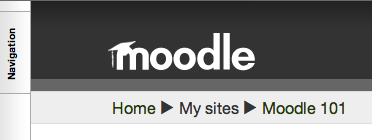


      Click on the word 'Navigation' to make the block pop out. You can use the little icons next to the title to put it back where it was, or you can use the little icons to 'dock' other blocks if you prefer them that way.

  • Adding content to Moodle


    • Adding Files

      Work through the tutorials below (coming soon!). Once you have, you can use the links at the bottom of the page to learn more about the file picker and practice using it to upload files from your computer.

      Three scenarios:

      Adding files from your computer

      This is probably the option that most people will need. Follow the first tutorial to learn how to upload and organise files from your computer.

      Adding resources from an external source (YouTube, Flickr, GoogleDocs etc)

      Moodle 2.0 allows you to pull in files and resources from external repository sites like YouTube, Flickr, GoogleDocs, Dropbox and more - quick, and really efficient. In the first two cases, it even allows you to search the sites for relevant material under Creative Commons licensing. The second tutorial walks you through both processes.

      Adding HTML content you have created

      A great way to put text-based content into your unit is via HTML - it's a much better interface for students, and gives better accessibility than PDF and Word documents. HTML is easy to create using programs like Wimba Create and iWeb, without needing to know any code (need help? TLC runs workshops on HTML content creation). There's a trick to getting it into Moodle, though - start with your zipped folder, then follow along with the third tutorial.


    • Still clear as mud?

  • Activities

    This topic will cover using tools within Moodle to set up course content/experiences

  • Communication

    Using forums, chats, blogs etc to communicate and interact with students

  • Assessment


    Covers using standard assessment tools in Moodle, as well as using other tools like forums and blogs for assessment purposes

  • Effective Course Design

    If you need some help conceptualising how course design works, or are not sure how to design a course to fit your teaching style, the following two presentations give a very clear scaffold for thinking about Moodle course design. The second presentation was delivered to a K-12 teaching audience, but is still applicable to undergraduate courses.


    If you'd like to explore higher-level course design and development principles in greater depth, look through the web resources and academic literature.

  • More advanced Moodling

    This topic will cover more advanced skills - like using the Workshop module


  • Effective Teaching Practice

    Research and resources on teaching effectively in Moodle

  • Help! It's broken...!

    Does what it says on the tin - links to support resources for troubleshooting etc - includes links to helpdesk support