To get started, click here, find the unit or site you would like to work with and click on it. If you then resize your browser windows so you can see both of them at the same time, you'll be able to follow along easily with the tutorial.
If you're a 'watch then do' type of person, you can watch the below tutorial series in full, then swap to the window with your site in it and do it yourself. If you'd prefer to work along with the tutorials (recommended), let the videos run in the background while you work in your site, letting the audio guide you. You can pause and replay the videos at any time, and the playlist at the bottom lets you revise individual skills without having to replay the whole tutorial. Videos too small? You can toggle fullscreen mode using the square-with-two-arrows icon in the centre of the video window.
(PS - feel free to use the share button if you'd like to post these tutorials somewhere else!)
If you're on a mobile device that can't read Flash, use .
Navigation - Docks vs Blocks
Getting around Moodle is pretty easy - just use the Navigation block in the top left of your screen to move between courses, and the 'breadcrumb' trail just above it to move between topics, resources and activities and the unit homepage.
What's that? You can't see a Navigation block? It's probably been 'docked' by accident. 'Docked' blocks appear at the left side of your screen as a little tab, like this:
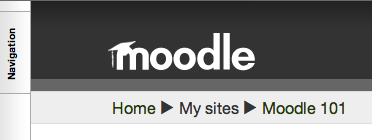
Click on the word 'Navigation' to make the block pop out. You can use the little icons next to the title to put it back where it was, or you can use the little icons to 'dock' other blocks if you prefer them that way.